4loaders supported
 Melon Mod Manager
Desktop manager for Minecraft content
Manage mods, shaders, and packs without the folder mess.
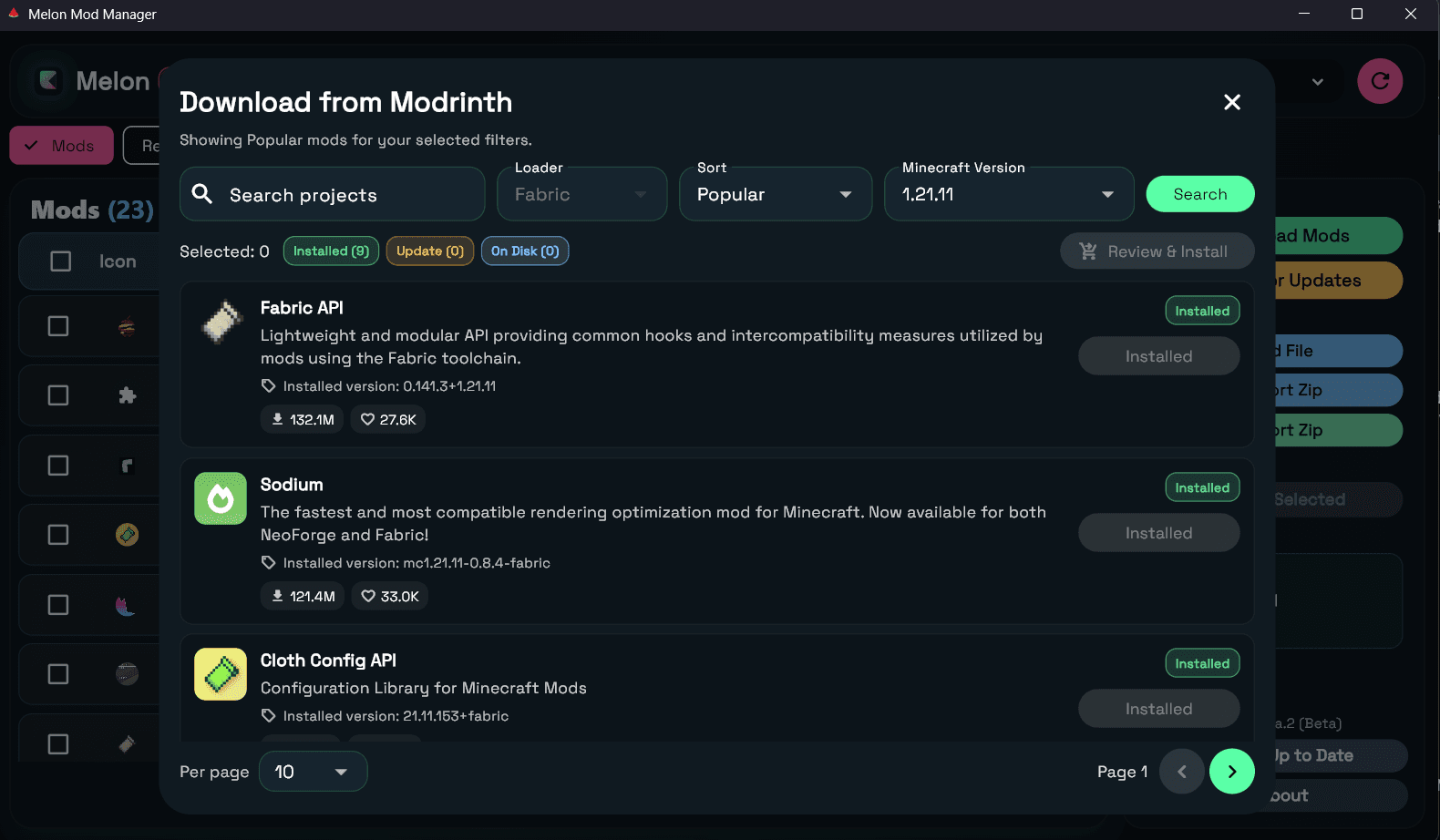
Melon helps you find the right content path, browse Modrinth, add local `.jar` and `.zip` files, auto-detect the most likely folder target, flag linked dependency needs, review updates, and keep bundle archives tidy in one place.
Made for modded Minecraft setups
Detect setup
Loader-aware path detection helps map installs to the right folder lane first.
Track sources
Keep Modrinth installs and manually added files in one library view.
Repair local data
Rebuild metadata and refresh caches when local state gets messy.
Modrinth search inside the app
Drag-and-drop `.jar` and `.zip` installs
Tracked updates for Modrinth-backed content
Import, export, and rebuild local metadata
3content types in one library
2desktop platforms supported
What Melon manages
Manage mods, shader packs, and resource packs in one place.
Keep your library together so installs, updates, and clean-up feel simple instead of scattered across different folders and launchers.
.jar files and Modrinth projects
Mods
Search Modrinth, add local jars, surface linked dependency requirements, and keep tracked installs readable instead of guessing what belongs together.
Loader-aware install context
Dependency preview before install
Tracked and external items in one list
.zip packs in the correct folder
Shader packs
Download compatible shader packs from Modrinth or drop local zip files straight into the app without juggling folders by hand.
Search and install from Modrinth
Local zip import by drag-and-drop
Update checks for tracked items
Managed alongside the rest of your setup
Resource packs
Keep resource packs in the same flow as mods and shaders instead of bouncing between launchers and file explorers.
Shared library and update flow
Bundle import and export support
Metadata rebuild when local data drifts
Why people keep it installed
Helpful desktop tools for everyday mod setup.
Downloads, imports, updates, and clean-up tools stay together, so managing a library feels easier from day one.
Dependency-aware installs
Surface required Modrinth dependencies early so the install flow feels more like a compatibility check than trial and error.
Local file intake
Add `.jar` and `.zip` files with drag-and-drop or the file picker while Melon steers them toward the right folder path.
Tracked vs external visibility
See what came from Modrinth, what was added manually, and what can be updated.
Content update review
Check compatible updates for mods, shader packs, and resource packs from the same workflow without bouncing between tabs and folders.
Bundle import and export
Create zip bundles for backup, migration, or sharing, then import them back into the right content area.
Metadata rebuild tools
Refresh local caches and rebuild metadata when you need to clean up a library or recover from stale local state.
How the app works
Four steps from setup to maintenance.
Start by finding your game folder, add what you want, then come back later for updates, exports, and quick fixes.
01
Detect the setup you already use
Point Melon at your Minecraft folder and it helps infer the active loader, match the game version, and lock onto the right content path before files start moving.
02
Browse Modrinth or add local files
Use the built-in Modrinth dialog for downloads or drag local `.jar` and `.zip` files into the app with the destination already mapped to the active content lane.
03
Review updates and install with more context
Check tracked content for compatible updates, preview dependency requirements, and get a cleaner compatibility read before a missing supporting mod turns into launch errors.
04
Import, export, and recover the library
Package content into zip bundles, import packs back in, rebuild local metadata, and export error details when you need to troubleshoot.
Compatibility and trust
Built for common setups and easy to verify.
Melon is open source, with releases on GitHub. You can read the code, build it yourself, or compare release files before installing.
Why antivirus warnings may appear
?Small unsigned desktop apps can sometimes trigger false positives. That is why it helps to keep the source code and release files easy to inspect.
What Melon focuses on
Loader-aware Java mod workflows, automatic path inference, dependency-aware install checks, support for shader packs and resource packs, and straightforward GitHub-based releases.
Windows 10/11 (64-bit) and Linux (x64)
Fabric, Quilt, Forge, and NeoForge support
Internet required for Modrinth browsing and downloads
Open-source code and release downloads on GitHub
Get started
Download Melon and start organizing the library.
Pick what you want to do next: download the app, check the code, report a bug, or browse content on Modrinth.